

Solution Manual for IT Essentials Labs and Study Guide Version 7
- Information Technology
- 592 pages
- Shared May 2025
Need help with textbook problems? Solution Manual for IT Essentials Labs and Study Guide Version 7 has all the answers and solutions to get you through.
Preview 16 of 592 pages
See the first 16 pages exactly as they appear in the document.
Page 1 Read page 1 as text
IT Essentials Version 7 Labs & Study Guide Instructor’s Answer Key Allan Johnson Cisco Press 221 River St Hoboken, NJ 07030
Page 2 Page 3 Read page 3 as text
viii IT Essentials Version 7, Labs & Study Guide Credits Figure 1-2a Gigello/Shutterstock Figure 1-2b Nikkytok/Shutterstock Figure 1-2c Kastianz/Shutterstock Figure 1-2d Marc Dietrich/123RF Figure 1-3a Ivaschenko Roman/Shutterstock Figure 1-3b scanrail/123RF Figure 1-4a Anthony Berenyi/Shutterstock Figure 1-4b Alister G Jupp/Shutterstock Figure 1-4d S.Dashkevych/Shutterstock Figure 1-4f CPM PHOTO/Shutterstock Figure 1-4h Li Xuejun/123RF Figure 1-4j Vieloryb/123RF Figure 1-5a Birgit Reitz-Hofmann/Shutterstock Figure 1-5b Peerayuth Muenbunmee/Shutterstock Figure 1-5c Jeffrey Banke/123RF Figure 1-5g Jverdut/Shutterstock Figure 1-5h Freer/Shutterstock Figure 1-5i Nejron Photo/Shutterstock Figure 1-6a EA230311/Shutterstock Figure 1-6e Mingman/Shutterstock Figure 1-6f Anton Starikov/Shutterstock Figure 1-6g I.C.E. PhotoStock/Shutterstock Figure 1-7a Suthisakaewkajng/123RF Figure 1-7d Blachkovsky/Shutterstock Figure 1-7e John99/Shutterstock Figure 3-1b Olivér Svéd/123RF Figure 3-1d Thanyathorn Manocam/123RF Figure 3-2a Feng Yu/Shutterstock Figure 3-2b Xavier P/Shutterstock Figure 3-2c Oksana Shufrych/Shutterstock Figure 3-2d Patrik Slezak/Shutterstock Figure 3-2e AGorohov/Shutterstock Figure 3-3a Maryp/Shutterstock
Page 4 Read page 4 as text
Credits ix Figure 3-3b Dan74/Shutterstock Figure 3-3c Krzysztof Gorski/Shutterstock Figure 3-3d Tyler Boyes/Shutterstock Figure 3-4a Alexander_Evgenyevich/Shutterstock Figure 3-4b Stocksnapper/Shutterstock Figure 3-4c Bildagentur Zoonar GmbH/Shutterstock Figure 3-4d Robnroll/Shutterstock Figure 3-4e Imagedb.com/Shutterstock Figure 3-4f Stas Walenga/Shutterstock Figure 3-5a Robynleigh/Shutterstock Figure 3-5b Jverdut/Shutterstock Figure 3-5c Arnut09job/123RF Figure 3-5d Gigello/Shutterstock Figure 3-6 Andy Pollard/Shutterstock Figure 3-7 Vtls/Shutterstock Figure 3-8 Birgit Reitz-Hofmann/Shutterstock Unnumbered Figure 3-1 Screenshot of BIOS © 2011 American Megatrends, Inc Unnumbered Figure 3-2 Screenshot of SABERTOOTH Z97 MARK S ©ASUSTeK Computer Inc Unnumbered Figure 5-1 Datskevich Aleh/Shutterstock Unnumbered Figure 5-2 asiana/Shutterstock Unnumbered Figure 5-3 Artush/123RF Unnumbered Figure 5-4 Horvathta/Shutterstock Unnumbered Figure 6-1 Screenshot of Internet Protocol Version 4 (TCP/IP) © Microsoft 2019 Unnumbered Figure 6-2 Screenshot of Internet Protocol Version 4 (TCP/IP) © Microsoft 2019 Figure 7-1a JonBrackpool-Photography/Shutterstock Figure 7-1b Nikkytok/Shutterstock Figure 7-1c Arno van Dulmen/Shutterstock Figure 7-1d PRO Stock Professional/Shutterstock Figure 7-2b Dmitry Sobolev/Shutterstock Figure 7-2d Yeti studio/Shutterstock Figure 8-1a Geo Martinez/Shutterstock Figure 8-1e Karl Yamashita/Shutterstock Figure 8-1g Feng Yu/123RF
Page 5 Read page 5 as text
x IT Essentials Version 7, Labs & Study Guide Figure 8-1i al1962/Shutterstock Unnumbered Figure 9-1 Screenshot of Oracle VM Virtual Manager © 2019 Canonical Ltd Unnumbered Figure 9-2 Screenshot of Ubuntu Desktop Window © 2019 Canonical Ltd Unnumbered Figure 10-1 Screenshot of Command Prompt © Microsoft 2019 Figure 11-1 Screenshot of Windows Desktop © Microsoft 2019 Figure 11-1a Screenshot of Windows Desktop © Microsoft 2019 Figure 11-2 Screenshot of Windows 10 Settings App © Microsoft 2019 Figure 11-3 Screenshot of Windows 8 Settings App © Microsoft 2019 Figure 11-4 Screenshot of Windows 7 Control Panel © Microsoft 2019 Figure 11-5 Screenshot of Windows 10 Control Panel © Microsoft 2019 Figure 11-6 Screenshot of Windows 10 Network and Internet Control Panel © Microsoft 2019 Figure 11-7 Screenshot of Device Manager © Microsoft 2019 Figure 11-8 Screenshot of Device and Printers Control Panel © Microsoft 2019 Unnumbered Figure 11-1 (a) Screenshot of Device Manager Alert Icon © Microsoft 2019 Unnumbered Figure 11-1 (b) Screenshot of Device Manager Alert Icon © Microsoft 2019 Unnumbered Figure 11-1 (c) Screenshot of Device Manager Alert Icon © Microsoft 2019 Unnumbered Figure 11-1 (d) Screenshot of Device Manager Alert Icon © Microsoft 2019 Figure 11-9 Screenshot of Microsoft Management Console © Microsoft 2019 Figure 11-10 Screenshot of Enable Sharing © Microsoft 2019 Figure 11-11 Screenshot of TCP/IPv4 Properties © Microsoft 2019 Figure 11-12 Screenshot of Add a New Wireless Network © Microsoft 2019 Figure 11-13 Screenshot of VPN Access in Windows © Microsoft 2019 Unnumbered Figure 11-1a Screenshot of Windows Start Menu © Microsoft 2019 Unnumbered Figure 11-1b Screenshot of Windows Start Menu © Microsoft 2019 Unnumbered Figure 11-1c Screenshot of Windows Start Menu © Microsoft 2019 Unnumbered Figure 11-2 Screenshot of Folder Explorer Options (Windows 10) © Microsoft 2019 Unnumbered Figure 11-3 Screenshot of Internet Properties window © Microsoft 2019 Unnumbered Figure 11-4 Screenshot of Default apps window in Windows 10 © Microsoft 2019
Page 6 Read page 6 as text
Credits xi Unnumbered Figure 11-5 Screenshot of Step 2: Clear Temporary Internet Files. © Microsoft 2019 Unnumbered Figure 11-8 Screenshot of Step 2: Display the monitor settings on your computer. © Microsoft 2019 Unnumbered Figure 11-9 Screenshot of a. Click Language preferences in the Region Window © Microsoft 2019 Unnumbered Figure 11-10 Screenshot of Click the language button © Microsoft 2019 Unnumbered Figure 11-11 Screenshot of Click the language button © Microsoft 2019 Unnumbered Figure 11-12 Screenshot of Displayed language © Microsoft 2019 Unnumbered Figure 11-13 Screenshot of Control Panel. © Microsoft 2019 Unnumbered Figure 11-14 Screenshot of Language preference option © Microsoft 2019 Unnumbered Figure 11-15 Screenshot of Windows Defender © Microsoft 2019 Unnumbered Figure 11-16 Screenshot of Memory Logs © Microsoft 2019 Unnumbered Figure 11-17 Screenshot of Add or Remove Snap-ins window © Microsoft 2019 Unnumbered Figure 11-18 Screenshot of Allow changing the parent snap-in © Microsoft 2019 Unnumbered Figure 11-19 Screenshot of Color Panel © Microsoft 2019 Unnumbered Figure 11-20 Screenshot of Command Prompt © Microsoft 2019 Unnumbered Figure 11-21 Screenshot of the Remote Desktop connection © Microsoft 2019 Unnumbered Figure 12-1 Screenshot of the App Shortcuts to the Home Screen © Microsoft 2019 Unnumbered Figure 12-2 Screenshot of the app icon © Microsoft 2019 Unnumbered Figure 12-3 Screenshot of the Add Widgets © Microsoft 2019 Unnumbered Figure 12-4 Screenshot of the Widgets icon © Microsoft 2019 Unnumbered Figure 12-5 Screenshot of the Google Fit Widget © Microsoft 2019 Unnumbered Figure 12-6 Screenshot of the Move Apps between Screens © Microsoft 2019 Unnumbered Figure 12-7 Screenshot of the app icon © Microsoft 2019 Unnumbered Figure 12-8 Screenshot of Remove Apps or Widgets © Microsoft 2019 Unnumbered Figure 12-9 Screenshot of Create a Folder © Microsoft 2019 Unnumbered Figure 12-10 Screenshot of Touch and drag © Microsoft 2019 Unnumbered Figure 12-11 Screenshot of Calculator and Photos apps © Microsoft 2019
Page 7 Read page 7 as text
xii IT Essentials Version 7, Labs & Study Guide Unnumbered Figure 12-12 Screenshot of ITE Apps Folder © Microsoft 2019 Unnumbered Figure 12-13 Screenshot of Touch anywhere © Microsoft 2019 Unnumbered Figure 12-14 Screenshot of app to an empty area © Microsoft 2019 Unnumbered Figure 12-15 Screenshot of folder was deleted © Microsoft 2019 Unnumbered Figure 12-16 Screenshot of Google Play Store © Microsoft 2019 Unnumbered Figure 12-17 Screenshot of Google Play Store © Microsoft 2019 Unnumbered Figure 12-18 Screenshot of Google Play Store © Microsoft 2019 Unnumbered Figure 12-19 Screenshot of INSTALL and then ACCEPT © Microsoft 2019 Unnumbered Figure 12-20 Screenshot of uninstall LastPass © Microsoft 2019 Unnumbered Figure 12-21 “Screen shot(s) reprinted with permission from Apple Inc.” Unnumbered Figure 12-22 “Screen shot(s) reprinted with permission from Apple Inc.” Unnumbered Figure 12-23 “Screen shot(s) reprinted with permission from Apple Inc.” Unnumbered Figure 12-24 “Screen shot(s) reprinted with permission from Apple Inc.” Unnumbered Figure 12-25 “Screen shot(s) reprinted with permission from Apple Inc.” Unnumbered Figure 12-26 “Screen shot(s) reprinted with permission from Apple Inc.” Unnumbered Figure 12-27 “Screen shot(s) reprinted with permission from Apple Inc.” Unnumbered Figure 12-28 “Screen shot(s) reprinted with permission from Apple Inc.” Unnumbered Figure 12-29 “Screen shot(s) reprinted with permission from Apple Inc.” Unnumbered Figure 12-30 Screenshot of Passcode Lock on an Android Device © Microsoft 2019 Unnumbered Figure 12-31 Screenshot of Security depending on your device © Microsoft 2019 Unnumbered Figure 12-32 Screenshot of Touch Screen lock or Screen lock type to choose a method for unlocking the screen © Microsoft 2019 Unnumbered Figure 12-33 “Screen shot(s) reprinted with permission from Apple Inc.” Unnumbered Figure 12-34 “Screen shot(s) reprinted with permission from Apple Inc.” Unnumbered Figure 12-35 “Screen shot(s) reprinted with permission from Apple Inc.” Unnumbered Figure 12-36 “Screen shot(s) reprinted with permission from Apple Inc.” Unnumbered Figure 13-1 Screenshot of Computer Management © Microsoft 2019 Unnumbered Figure 13-2 Screenshot of Computer Management © Microsoft 2019 Unnumbered Figure 13-3 Screenshot of Computer Management © Microsoft 2019
Page 8 Read page 8 as text
xiii Contents at a Glance Introduction xxxiv Chapter 1 Introduction to Personal Computer Hardware 1 Chapter 2 PC Assembly 29 Chapter 3 Advanced Computer Hardware 55 Chapter 4 Preventive Maintenance and Troubleshooting 93 Chapter 5 Networking Concepts 111 Chapter 6 Applied Networking 137 Chapter 7 Laptops and Other Mobile Devices 181 Chapter 8 Printers 215 Chapter 9 Virtualization and Cloud Computing 239 Chapter 10 Windows Installation 253 Chapter 11 Windows Configuration 275 Chapter 12 Mobile, Linux, and macOS Operating Systems 435 Chapter 13 Security 485 Chapter 14 The IT Professional 527
Page 9 Read page 9 as text
xiv IT Essentials Version 7, Labs & Study Guide Contents Introduction xxxiv Chapter 1 Introduction to Personal Computer Hardware 1 Personal Computers 2 What Is in a Computer? 2 Electrical and ESD Safety 2 PC Components 3 Cases and Power Supplies 3 Motherboards 6 CPUs and Cooling Systems 7 Memory 7 Adapter Cards and Expansion Slots 10 Hard Disk Drives and SSDs 12 Optical Storage Devices 13 Ports, Cables, and Adapters 14 Input Devices 18 Output Devices 20 Computer Disassembly 21 The Technician’s Toolkit 21 Computer Disassembly 21 Labs and Activities 22 1.3.2.2 Lab–Disassemble a Computer (Instructor Version) 23 Recommended Tools 23 Instructions 23 Part 1: Preparation 23 Part 2: Parts Removal 24 Chapter 2 PC Assembly 29 Assemble the Computer 30 General and Fire Safety 30 Open the Case and Connect the Power Supply 30 Install the Motherboard Components 32 Install Internal Drives 33 Install the Adapter Cards 34 Select Additional Storage 36 Install the Cables 37 Labs and Activities 41 Command Reference 41
Page 10 Read page 10 as text
Contents xv 2.1.2.5 Lab–Install the Power Supply (Instructor Version) 42 Introduction 42 Recommended Equipment 42 Instructions 42 2.1.3.10 Lab–Install the Motherboard in a Computer (Instructor Version) 43 Introduction 43 Recommended Equipment 43 Instructions 43 2.1.4.7 Lab–Install the Drives (Instructor Version) 46 Introduction 46 Recommended Equipment 46 Instructions 46 2.1.5.6 Lab–Install Adapter Cards (Instructor Version) 47 Introduction 47 Recommended Equipment 47 Instructions 47 2.1.7.4 Lab–Install Internal Cables (Instructor Version) 49 Introduction 49 Recommended Equipment 49 Instructions 49 2.1.7.8 Lab–Install Front Panel Cables (Instructor Version) 51 Introduction 51 Recommended Equipment 51 Instructions 51 2.1.7.11 Lab–Complete the Computer Assembly (Instructor Version) 52 Introduction 52 Recommended Equipment 52 Instructions 52 Chapter 3 Advanced Computer Hardware 55 Boot the Computer 56 POST, BIOS, CMOS, and UEFI 56 BIOS/UEFI Configuration 57 Electrical Power 58 Wattage and Voltage 58 Power Fluctuation and Protection 59 Advanced Computer Functionality 59 CPU Architectures and Operation 60 RAID 62
Page 11 Read page 11 as text
xvi IT Essentials Version 7, Labs & Study Guide Ports, Connectors, and Cables 63 Monitors 70 Computer Configuration 71 Upgrade Computer Hardware 71 Configurations for Specialized Computers 72 Protecting the Environment 74 Safe Disposal of Equipment and Supplies 74 Labs and Activities 75 Command Reference 75 3.1.1.6 Lab–Investigate BIOS or UEFI Settings (Instructor Version) 76 Introduction 76 Recommended Equipment 76 Instructions 76 Part 1: Enter BIOS or UEFI 76 Part 2: Explore the Settings 77 3.1.2.5 Lab–Search for BIOS or UEFI Firmware Updates (Instructor Version) 80 Introduction 80 Recommended Equipment 80 Instructions 80 3.1.2.6 Lab–Install Windows (Instructor Version) 83 Objectives 83 Background/Scenario 83 Required Resources 83 Instructions 83 3.1.2.7 Lab–Install Third-Party Software in Windows (Instructor Version) 86 Introduction 86 Recommended Equipment 86 Instructions 86 Part 1: Installing Third-Party Software 86 Part 2: Uninstalling Third-Party Software 87 Reflection Question 87 3.2.1.3 Lab–Ohms Law (Instructor Version) 88 3.4.1.7 Lab–Research a Hardware Upgrade (Instructor Version) 90 Introduction 90 Instructions 90 Chapter 4 Preventive Maintenance and Troubleshooting 93 Preventive Maintenance 94 PC Preventive Maintenance Overview 94 Troubleshooting Process 95
Page 12 Read page 12 as text
Contents xvii Troubleshooting Process Steps 96 Common Problems and Solutions for PCs 96 Apply Troubleshooting Process to Computer Components and Peripherals 98 Labs and Activities 100 Command Reference 100 4.2.3.5 Lab–Use a Multimeter and a Power Supply Tester (Instructor Version) 101 Introduction 101 Recommended Equipment 101 Instructions 101 Part 1: Multimeter 101 Part 2: Power Supply Tester 103 4.2.3.6 Lab–Troubleshoot Hardware Problems (Instructor Version) 106 Introduction 106 Recommended Equipment 106 Scenario 106 Instructions 107 Chapter 5 Networking Concepts 111 Network Components and Types 112 Types of Networks 112 Internet Connection Types 114 Networking Protocols, Standards, and Services 115 Transport Layer Protocols 115 Application Port Numbers 116 Wireless Protocols 118 Network Services 120 Network Devices 120 Basic Network Devices 120 Security Devices 121 Other Network Devices 122 Network Cables 122 Network Tools 122 Copper Cables and Connectors 123 Fiber Cables and Connectors 126 Labs and Activities 129 Command Reference 129
Page 13 Read page 13 as text
xviii IT Essentials Version 7, Labs & Study Guide 5.4.2.8 Lab–Build and Test a Network Cable (Instructor Version) 130 Introduction 130 Recommended Equipment 130 Wire Diagrams 130 Instructions 132 Chapter 6 Applied Networking 137 Device-to-Network Connections 138 Network Addressing 138 Configure a NIC 139 Configure Wired and Wireless Networks 140 Firewall Settings 141 IoT Device Configuration 142 Network Troubleshooting 142 Network Troubleshooting Process 142 Network Problems and Solutions 143 Labs and Activities 146 Command Reference 146 6.1.2.1 Packet Tracer–Add Computers to an Existing Network (Instructor Version) 147 Objectives 147 Introduction 147 Instructions 147 6.1.2.7 Lab–Configure a NIC to Use DHCP in Windows (Instructor Version) 149 Introduction 149 Recommended Equipment 149 Instructions 149 6.1.3.9 Packet Tracer–Connect to a Wireless Network (Instructor Version) 155 Objectives 155 Introduction 155 Instructions 155 Part 1: Connect to a Wireless Router 155 Part 2: Configure the Wireless Settings 157 Part 3: Connect Wireless Clients to an Access Point 158 Part 4: Other Administrative Tasks 158 6.1.3.10 Lab–Configure a Wireless Network (Instructor Version) 160 Introduction 160 Recommended Equipment 160 Instructions 160
Page 14 Read page 14 as text
Contents xix Part 1: Log into the Wireless Router 160 Part 2: Configure Basic Wireless Settings 162 Part 3: Connect a Wireless Client 163 Part 4: Connect an Access Point (Optional) 163 Part 5: Reset to the Original Configuration 165 6.1.4.7 Packet Tracer–Configure Firewall Settings 166 Objectives 166 Introduction 166 Instructions 166 6.1.4.8 Lab–Configure Firewall Settings (Instructor Version) 169 Objectives 169 Background/Scenario 169 Required Resources 169 Instructions 169 Part 1: Log into the Wireless Router 169 Part 2: Configure Firewall Settings 171 Reflection Question 172 6.1.5.3 Packet Tracer–Configure IoT Devices (Instructor Version) 173 Introduction 173 Instructions 173 6.2.2.5 Lab–Troubleshoot Network Problems (Instructor Version) 175 Introduction 175 Recommended Equipment 175 Scenario 175 Chapter 7 Laptops and Other Mobile Devices 181 Characteristics of Laptops and Other Mobile Devices 182 Mobile Device Overview 182 Laptop Components 182 Laptop Display Components 183 Laptop Configuration 184 Power Settings Configuration 184 Wireless Configuration 185 Laptop Hardware and Component Installation and Configuration 185 Expansion Slots 185 Replacing Laptop Components 186 Other Mobile Device Hardware Overview 186 Other Mobile Device Hardware 187 Specialty Mobile Devices 187
Page 15 Read page 15 as text
xx IT Essentials Version 7, Labs & Study Guide Network Connectivity and Email 188 Wireless and Cellular Data Networks 188 Configuring Email 189 Preventive Maintenance and Troubleshooting Laptops and Other Mobile Devices 190 Scheduled Maintenance for Laptops and Other Mobile Devices 190 Basic Troubleshooting Process for Laptops and Other Mobile Devices 191 Applying the Troubleshooting Process to Laptops and Other Mobile Devices 191 Labs and Activities 194 Command Reference 194 7.1.1.10 Lab–Mobile Device Information (Instructor Version) 195 Introduction 195 Recommended Equipment 195 7.1.2.8 Lab–Research Docking Stations and Port Replicators (Instructor Version) 197 Introduction 197 Reflection 200 7.3.1.6 Lab–Research Laptop RAM (Instructor Version) 201 7.3.2.4 Lab–Research Laptop Screens (Instructor Version) 202 7.3.2.7 Lab–Research Laptop Batteries (Instructor Version) 203 7.3.2.10 Lab–Research Laptop Drives (Instructor Version) 205 7.5.1.2 Lab–Mobile Wi-Fi (Instructor Version) 206 Introduction 206 Recommended Equipment 206 7.7.2.4 Lab–Research Laptop Problems (Instructor Version) 208 7.7.2.5 Lab–Gather Information from the Customer (Instructor Version) 210 7.7.2.6 Investigate Support Websites and Repair Companies (Instructor Version) 211 Local Laptop Repair Company 211 Laptop Manufacturer Support Website 212 Chapter 8 Printers 215 Common Printer Features 216 Characteristics and Capabilities 216 Printer Connections 217 Printer Type Comparison 217 Inkjet Printers 218 Laser Printers 219 Laser Printing Process 219 Thermal Printers and Impact Printers 221
Page 16 Read page 16 as text
Contents xxi Virtual Printers 222 3D Printers 222 Installing and Configuring Printers 223 Installing and Updating a Printer 223 Configuring Options and Default Settings 223 Optimizing Printer Performance 224 Sharing Printers 225 Operating System Settings for Sharing Printers 225 Print Servers 225 Maintaining and Troubleshooting Printers 226 Printer Preventive Maintenance 226 Inkjet Printer Preventive Maintenance 226 Laser Printer Preventive Maintenance 226 Thermal Printer Preventive Maintenance 227 Impact Printer Preventive Maintenance 227 3D Printer Preventive Maintenance 227 Troubleshooting Printer Issues 227 Problems and Solution 228 Labs and Activities 229 Command Reference 229 8.3.1.2 Lab–Install a Printer in Windows (Instructor Version) 230 Introduction 230 Recommended Equipment 230 Reflection 231 8.4.1.3 Lab–Share a Printer in Windows (Instructor Version) 232 Introduction 232 Recommended Equipment 232 Part: Share a Directly Connected Printer 232 8.5.2.3 Lab–Perform Preventive Maintenance on an Inkjet Printer (Instructor Version) 234 Objectives 234 Recommended Resources 234 Reflection 235 8.5.3.2 Lab–Perform Preventive Maintenance on a Laser Printer (Instructor Version) 236 Objectives 236 Recommended Resources 236 Reflection 237
576 more pages in the full document
Unlock it once and it stays in your library, ready to chat with or turn into flashcards.
Unlock the full documentMore Information Technology study materials
See all Exam Guides
Test Bank for Managing and Using Information Systems: A Strategic Approach, 7th Edition (Chapters 1-13)
Information Technology
452 pages149downloadsFeb 2025 Exam Guides
Test Bank for Essentials of MIS, 12th Edition
Information Technology
342 pages146downloadsFeb 2025 Exam Guides
A+ Guide to Hardware, 9th Edition Test Bank
Information Technology
116 pages142downloadsFeb 2025 Textbook Guides
Solution Manual for Essentials of System Analysis and Design, 4th Edition
Information Technology
282 pages140downloadsFeb 2025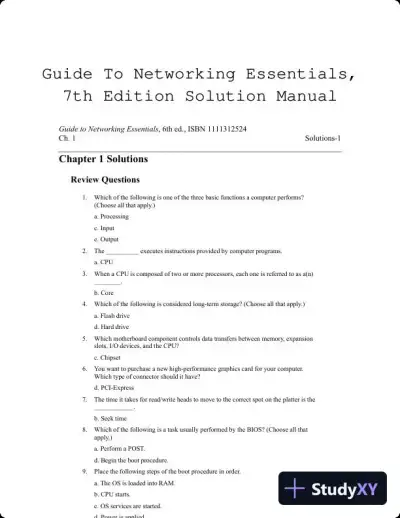 Textbook Guides
Guide To Networking Essentials, 7th Edition Solution Manual
Information Technology
48 pages139downloadsFeb 2025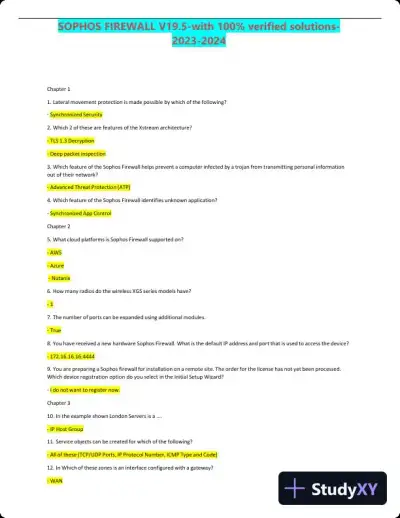 Past Exams
2023-2024 SOPHOS FIREWALL V19.5 Practice Exam with Answers (75 Solved Questions)
Information Technology
7 pages134downloadsFeb 2025 Class Notes
Lecture Notes for CCNP Enterprise: Core Networking (ENCOR) v8 Lab Manual, 2nd Edition
Information Technology
1089 pages123downloadsFeb 2025 Class Notes
Lecture Notes for Adobe XD Classroom in a Book (2020 release)
Information Technology
66 pages118downloadsFeb 2025
Study this document with CramX
Once it is in your library, every tool can work from it.